-
Showing posts with label Label trick. Show all posts

24 September 2012

NEW FLASH ANIMATED LABEL CLOUD FOR BLOGGER

VM | 2:59 am | Be the first to comment!

Flash Label Cloud Widget is very popular for blogger.Its is very useful it save space and look beautiful.New Flash label cloud is different from old one it is easy to install and having colorful hover effect this label cloud is transparent which help to see every label clearly.


If you want to Install New Flash Animated Label Cloud then follow below steps-


  • Go to blogger Dashboard.
  • Click on Layout Tab.
  • Now click on Add Gadget.
  • Now one pop-out will come there select HTML/JavaScript.
  • Paste Below Code There And Save It.
<div id="w2bFlashContent"><p style="display:none;">Flash Labels by <a href="http://lordhtml.blogspot.in/">Lord Html</a></p></div>

<script type="text/javascript">
/*<![CDATA[*/
var w2bFlashLabelSettings = {
blogurl : "YOUR-BLOG-URL",
color : "000000",
hoverColor : "101be8",
backgroundColor: "FFFFFF",
size : 12,
speed : 100,
width : 300,
height : 350
};
/*]]>*/
</script>
<script type="text/javascript" src="http://bloggerblogwidgets.googlecode.com/svn/trunk/w2b_new_flash_label_cloud.js"></script>


Remember-Don't forgot to Replace YOUR-BLOG-URL.
Read More »

HOW TO CUSTOMIZE BLOGGER LABELS WITH CSS

VM | 1:47 am | | Be the first to comment!
Labels

Today I will teach you how to customize blogger labels using Css.I am sure that no other tutorial make this type of awesome good looking hover effect Labels right now.

It will change your simple blogger labels into good looking white buttons and also add hover effect by which whenever any blogger click on it hover effect will appear.

Follow Below steps to add this awesome labels to your blog-

Step 1


  • Go To Blogger Dashboard.
  • Click On Layout Tab.
  • Now Click On Add gadget.
  • Add Labels Gadget.
  • Unchecked Show Number Of Post Per Label Ans Save It.

Unchecked Show Number Of Post Per Label


Step 2


  • Go To Blogger Dashboard.
  • Click On Template Tab.
  • Search ]]></b:skin> (How To Search Code)
  • Paste Below Code Above  ]]></b:skin>


/* Code By www.lordhtml.blogspot.com */

.list-label-widget-content ul
{
list-style-type:none;
padding-left:0px !important;
display:inline-block !important;
}
.list-label-widget-content li {
display:inline-block;
}


.list-label-widget-content li a {
color: #777;
font: 9px verdana;
text-transform: uppercase;
transition: border-color .218s;
background:
#f4f4f4;
background: -webkit-gradient(linear, 0% 40%, 0% 70%, from(
#F5F5F5), to(
#F1F1F1));
display: inline-block;
text-shadow: 0 1px 0
#fff;
-webkit-transition: border-color .218s;
-moz-transition: border .218s;
-o-transition: border-color .218s;
transition: border-color .218s;
background:
#f3f3f3;
background: -webkit-gradient(linear, 0% 40%, 0% 70%, from(
#F5F5F5), to(
#F1F1F1));
background: -moz-linear-gradient(linear, 0% 40%, 0% 70%, from(
#F5F5F5), to(
#F1F1F1));
border: solid 1px
#ccc;
border-radius: 2px;
-webkit-border-radius: 2px;
-moz-border-radius: 2px;
margin: 0 4px 4px 0;
padding: 3px 5px;
text-decoration: none;
}
.list-label-widget-content li a:hover {
color: #333;
border-color: #999;
-moz-box-shadow: 0 2px 0 rgba(0, 0, 0, 0.2) -webkit-box-shadow:0 2px 5px rgba(0, 0, 0, 0.2);
box-shadow: 0 1px 2px
rgba(0,0,0,0.15);
}

huh!! Now Save Template And Enjoy Your Awesome Label Cloud.
Read More »

23 September 2012

Add An Animated Bump Effect To Labels List On Blogger

VM | 8:00 pm | | Be the first to comment!
In this post we have a fun effect you can add to the links in your blog labels list.This trick has been around for a while and i have been using it on some other blogs.The effect is created using jQuery and basically when a visitor places their cursor over a link it moves across horizontally.So in the same manner you might have links change color, underline or change background on hover this will make them move.

Live Demo - You can see a demo in the category section in the sidebar of Design And Blog :Best Blogger Templates.

Video Tutorial Included - Fore More Help See The Video Tutorial At The End Of The Post.

Add Animated Link Lists To Your Blog


Step 1. In your Blogger dashboard click > Design > Edit Html 
Design Edit Html Blogger

Step 2. Find the following piece of code in your blogs Html : (Click Ctrl and F for a search bar to help find the code - More Info)

</head>
Step 3. Copy And Paste The Following Code Directly Above / Before </head>


<!--Animated Label Links For Blogger http://www.spiceupyourblog.com--><script src='http://ajax.googleapis.com/ajax/libs/jquery/1.5.1/jquery.min.js' type='text/javascript'>
</script>
<script type='text/javascript'>
var dur = 450;
$(document).ready(function() {
$('a.linknudge, .Label ul li a').hover(function() {
$(this).animate({
paddingLeft: '20px'
}, dur);
}, function() {
$(this).animate({
paddingLeft: 0
}, dur);
});
});</script><!--End Animated Label Links For Blogger http://www.spiceupyourblog.com-->
Step 4. Save Your Template.
Read More »

Blogger Label Widget Style

VM | 12:10 am | 1 Comment so far

Label tag design for blog 


just add the following CSS in your Blog(preferably before the ]]></b:skin> tag in the Edit HTML of the Template

Or

1.Go to ADD Gadget
2.And add Html/java script 
3.Copy and paste this Below code.


<style type="text/css">
/*<![CDATA[*/

.label-size a {
    display: inline-block;
    text-decoration: none;
    text-shadow: 0 1px 0 rgba(255, 255, 255, 0.4);
    padding: 4px 7px;
    font-family: 'Helvetica Neue', helvetica, sans-serif;
    font-size: 12px;
    line-height: 14px;
    height: 14px;
    vertical-align: middle;
    margin-bottom: 6px;
    -webkit-border-radius: 4px;
    -moz-border-radius: 4px;
    border-radius: 4px;
   
    -webkit-box-shadow: 0 1px 1px 0 rgba(0, 0, 0, 0.2), inset 0 1px 0 0 rgba(255, 255, 255, 0.4);
    -moz-box-shadow: 0 1px 1px 0 rgba(0, 0, 0, 0.2), inset 0 1px 0 0 rgba(255, 255, 255, 0.4);
    box-shadow: 0 1px 1px 0 rgba(0, 0, 0, 0.2), inset 0 1px 0 0 rgba(255, 255, 255, 0.4);
}


.label-size a {
    color: #996633;
    border: 1px solid #DDA13C;
   
    background: rgb(238,177,75);
    background: url(data:image/svg+xml;base64,PD94bWwgdmVyc2lvbj0iMS4wIiA/Pgo8c3ZnIHhtbG5zPSJodHRwOi8vd3d3LnczLm9yZy8yMDAwL3N2ZyIgd2lkdGg9IjEwMCUiIGhlaWdodD0iMTAwJSIgdmlld0JveD0iMCAwIDEgMSIgcHJlc2VydmVBc3BlY3RSYXRpbz0ibm9uZSI+CiAgPGxpbmVhckdyYWRpZW50IGlkPSJncmFkLXVjZ2ctZ2VuZXJhdGVkIiBncmFkaWVudFVuaXRzPSJ1c2VyU3BhY2VPblVzZSIgeDE9IjAlIiB5MT0iMCUiIHgyPSIwJSIgeTI9IjEwMCUiPgogICAgPHN0b3Agb2Zmc2V0PSIwJSIgc3RvcC1jb2xvcj0iI2VlYjE0YiIgc3RvcC1vcGFjaXR5PSIxIi8+CiAgICA8c3RvcCBvZmZzZXQ9IjEwMCUiIHN0b3AtY29sb3I9IiNjYzkxMmQiIHN0b3Atb3BhY2l0eT0iMSIvPgogIDwvbGluZWFyR3JhZGllbnQ+CiAgPHJlY3QgeD0iMCIgeT0iMCIgd2lkdGg9IjEiIGhlaWdodD0iMSIgZmlsbD0idXJsKCNncmFkLXVjZ2ctZ2VuZXJhdGVkKSIgLz4KPC9zdmc+);
    background: -moz-linear-gradient(top,  rgba(238,177,75,1) 0%, rgba(204,145,45,1) 100%);
    background: -webkit-gradient(linear, left top, left bottom, color-stop(0%,rgba(238,177,75,1)), color-stop(100%,rgba(204,145,45,1)));
    background: -webkit-linear-gradient(top,  rgba(238,177,75,1) 0%,rgba(204,145,45,1) 100%);
    background: -o-linear-gradient(top,  rgba(238,177,75,1) 0%,rgba(204,145,45,1) 100%);
    background: -ms-linear-gradient(top,  rgba(238,177,75,1) 0%,rgba(204,145,45,1) 100%);
    background: linear-gradient(top,  rgba(238,177,75,1) 0%,rgba(204,145,45,1) 100%);
    filter: progid:DXImageTransform.Microsoft.gradient( startColorstr='#eeb14b', endColorstr='#cc912d',GradientType=0 );
}

.label-size a:before  {
    content: '\2022';
    color: #FFFFFF;
    margin-right: 4px;
    font-size: 15px;
    line-height: 13px;
    height: 13px;
    vertical-align: text-top;
   
    text-shadow: 0 -1px -1px rgba(0, 0, 0, 0.2);
}

.label-size a:hover {
    text-decoration: none;
   
    background: rgb(240,183,86);
    background: url(data:image/svg+xml;base64,PD94bWwgdmVyc2lvbj0iMS4wIiA/Pgo8c3ZnIHhtbG5zPSJodHRwOi8vd3d3LnczLm9yZy8yMDAwL3N2ZyIgd2lkdGg9IjEwMCUiIGhlaWdodD0iMTAwJSIgdmlld0JveD0iMCAwIDEgMSIgcHJlc2VydmVBc3BlY3RSYXRpbz0ibm9uZSI+CiAgPGxpbmVhckdyYWRpZW50IGlkPSJncmFkLXVjZ2ctZ2VuZXJhdGVkIiBncmFkaWVudFVuaXRzPSJ1c2VyU3BhY2VPblVzZSIgeDE9IjAlIiB5MT0iMCUiIHgyPSIwJSIgeTI9IjEwMCUiPgogICAgPHN0b3Agb2Zmc2V0PSIwJSIgc3RvcC1jb2xvcj0iI2YwYjc1NiIgc3RvcC1vcGFjaXR5PSIxIi8+CiAgICA8c3RvcCBvZmZzZXQ9IjEwMCUiIHN0b3AtY29sb3I9IiNkNmEwNDQiIHN0b3Atb3BhY2l0eT0iMSIvPgogIDwvbGluZWFyR3JhZGllbnQ+CiAgPHJlY3QgeD0iMCIgeT0iMCIgd2lkdGg9IjEiIGhlaWdodD0iMSIgZmlsbD0idXJsKCNncmFkLXVjZ2ctZ2VuZXJhdGVkKSIgLz4KPC9zdmc+);
    background: -moz-linear-gradient(top,  rgba(240,183,86,1) 0%, rgba(214,160,68,1) 100%);
    background: -webkit-gradient(linear, left top, left bottom, color-stop(0%,rgba(240,183,86,1)), color-stop(100%,rgba(214,160,68,1)));
    background: -webkit-linear-gradient(top,  rgba(240,183,86,1) 0%,rgba(214,160,68,1) 100%);
    background: -o-linear-gradient(top,  rgba(240,183,86,1) 0%,rgba(214,160,68,1) 100%);
    background: -ms-linear-gradient(top,  rgba(240,183,86,1) 0%,rgba(214,160,68,1) 100%);
    background: linear-gradient(top,  rgba(240,183,86,1) 0%,rgba(214,160,68,1) 100%);
    filter: progid:DXImageTransform.Microsoft.gradient( startColorstr='#f0b756', endColorstr='#d6a044',GradientType=0 );
}
/*]]>*/
</style>
<a href="http://www.stylifyyourblog.com" title="Stylify Your Blog" ><img src="http://img1.blogblog.com/img/blank.gif" /></a>
4. Save that you are Done !!!
Read More »

22 September 2012

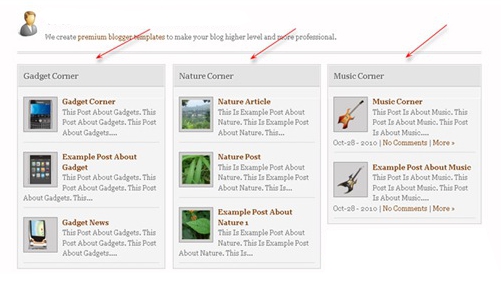
How to Add Labels with Thumbnail Latest 2012

VM | 11:58 pm | Be the first to comment!


1. Log in to your blogger account
2.Go to Design --> Edit HTML
3. Then, check in the "Expand Widget Templates" box
4. Copy the code below, and paste above ]]></b:skin>


*** Featured Categories ***/
     img.label_thumb{
        float:left;
padding:5px;
border:1px solid #8f8f8f;
background:#D2D0D0;
margin-right:10px;
height:55px;
width:55px;
}
     img.label_thumb:hover{
background:#f7f6f6;
}
     .label_with_thumbs {
float: left;
width: 100%;
min-height: 70px;
margin: 0px 10px 2px 0px;
adding: 0;
}
     ul.label_with_thumbs li {
padding:8px 0;
min-height:65px;
margin-bottom:10px;
}
    .label_with_thumbs a {}
    .label_with_thumbs strong {}
5. After that, copy the code below and paste above</head> 


<script type='text/javascript'>
//<![CDATA[
function labelthumbs(json){document.write('<ul class="label_with_thumbs">');for(var i=0;i<numposts;i++){var entry=json.feed.entry[i];var posttitle=entry.title.$t;var posturl;if(i==json.feed.entry.length)break;for(var k=0;k<entry.link.length;k++){if(entry.link[k].rel=='replies'&&entry.link[k].type=='text/html'){var commenttext=entry.link[k].title;var commenturl=entry.link[k].href;}
if(entry.link[k].rel=='alternate'){posturl=entry.link[k].href;break;}}var thumburl;try{thumburl=entry.media$thumbnail.url;}catch(error)
{s=entry.content.$t;a=s.indexOf("<img");b=s.indexOf("src=\"",a);c=s.indexOf("\"",b+5);d=s.substr(b+5,c-b-5);if((a!=-1)&&(b!=-1)&&(c!=-1)&&(d!="")){thumburl=d;}else thumburl='https://blogger.googleusercontent.com/img/b/R29vZ2xl/AVvXsEg7wJkz21OfUt8nNfY0w8dZLpDi1J9lu-kr7m88DV-RMW9QKVG85x6ATZiH_ZMin1LxDDgpwR0j2rwXD_O2mLfmfNyc54O9kJQGsi4bYLRE_cp4_HhGFVj5stSLT-CQNZmYjH0DwlgD1xie/';}
var postdate=entry.published.$t;var cdyear=postdate.substring(0,4);var cdmonth=postdate.substring(5,7);var cdday=postdate.substring(8,10);var monthnames=new Array();monthnames[1]="Jan";monthnames[2]="Feb";monthnames[3]="Mar";monthnames[4]="Apr";monthnames[5]="May";monthnames[6]="Jun";monthnames[7]="Jul";monthnames[8]="Aug";monthnames[9]="Sep";monthnames[10]="Oct";monthnames[11]="Nov";monthnames[12]="Dec";document.write('<li class="clearfix">');if(showpostthumbnails==true)
document.write('<a href="'+posturl+'" target ="_top"><img class="label_thumb" src="'+thumburl+'"/></a>');document.write('<strong><a href="'+posturl+'" target ="_top">'+posttitle+'</a></strong><br>');if("content"in entry){var postcontent=entry.content.$t;}
else
if("summary"in entry){var postcontent=entry.summary.$t;}
else var postcontent="";var re=/<\S[^>]*>/g;postcontent=postcontent.replace(re,"");if(showpostsummary==true){if(postcontent.length<numchars){document.write('');document.write(postcontent);document.write('');}
else{document.write('');postcontent=postcontent.substring(0,numchars);var quoteEnd=postcontent.lastIndexOf(" ");postcontent=postcontent.substring(0,quoteEnd);document.write(postcontent+'...');document.write('');}}
var towrite='';var flag=0;document.write('<br>');if(showpostdate==true){towrite=towrite+monthnames[parseInt(cdmonth,10)]+'-'+cdday+' - '+cdyear;flag=1;}
if(showcommentnum==true)
{if(flag==1){towrite=towrite+' | ';}
if(commenttext=='1 Comments')commenttext='1 Comment';if(commenttext=='0 Comments')commenttext='No Comments';commenttext='<a href="'+commenturl+'" target ="_top">'+commenttext+'</a>';towrite=towrite+commenttext;flag=1;;}
if(displaymore==true)
{if(flag==1)towrite=towrite+' | ';towrite=towrite+'<a href="'+posturl+'" class="url" target ="_top">More »</a>';flag=1;;}
document.write(towrite);document.write('</li>');if(displayseparator==true)
if(i!=(numposts-1))
document.write('');}document.write('</ul>');}
//]]>
</script>


6. OK, just click Save Template
Read More »

11 September 2012

Blogger Labels / Category With Cool Css3 Style

VM | 2:05 pm | Be the first to comment!
blogger-lables 


This is also cool trick for change your blogger labels, category with nice style. you can see above image. Its looks so great,Earlier i posted about same trick Change Blogger Label Links As Brick / Box Style. Follow below steps to add it to your blog.

1. Log in to blogger account & Go to Design >> Edit HTML

2. Find this code  by using Ctrl+F  ]]></b:skin>

3.Paste below code Before ]]></b:skin> code


.label-size {
    float: left;
    margin: 0 0 7px 20px;
    position: relative;
    font-family: 'Helvetica Neue', Helvetica, Arial, sans-serif;
    font-size: 0.75em;
    font-weight: bold;
    text-decoration: none;
    color: #996633;
    text-shadow: 0px 1px 0px rgba(255,255,255,.4);
    padding: 0.417em 0.417em 0.417em 0.917em;
    border-top: 1px solid #d99d38;
    border-right: 1px solid #d99d38;
    border-bottom: 1px solid #d99d38;
    -webkit-border-radius: 0 0.25em 0.25em 0;
    -moz-border-radius: 0 0.25em 0.25em 0;
    border-radius: 0 0.25em 0.25em 0;
    background-image: -webkit-linear-gradient(top, rgb(254, 218, 113), rgb(254, 186, 71));
    background-image: -moz-linear-gradient(top, rgb(254, 218, 113), rgb(254, 186, 71));
    background-image: -o-linear-gradient(top, rgb(254, 218, 113), rgb(254, 186, 71));
    background-image: -ms-linear-gradient(top, rgb(254, 218, 113), rgb(254, 186, 71));
    background-image: linear-gradient(top, rgb(254, 218, 113), rgb(254, 186, 71));
    filter: progid:DXImageTransform.Microsoft.gradient(GradientType=0,StartColorStr='#feda71', EndColorStr='#feba47');
    -webkit-box-shadow: inset 0 1px 0 #faeaba,
        0 1px 1px rgba(0,0,0,.1);
    -moz-box-shadow: inset 0 1px 0 #faeaba,
        0 1px 1px rgba(0,0,0,.1);
    box-shadow: inset 0 1px 0 #faeaba,
        0 1px 1px rgba(0,0,0,.1);
    z-index: 1;
}

.label-size:before {
    content: '';
    width: 1.30em;
    height: 1.39em;
    background-image: -webkit-linear-gradient(left top, rgb(254, 218, 113), rgb(254, 186, 71));
    background-image: -moz-linear-gradient(left top, rgb(254, 218, 113), rgb(254, 186, 71));
    background-image: -o-linear-gradient(left top, rgb(254, 218, 113), rgb(254, 186, 71));
    background-image: -ms-linear-gradient(left top, rgb(254, 218, 113), rgb(254, 186, 71));
    background-image: linear-gradient(left top, rgb(254, 218, 113), rgb(254, 186, 71));
    filter: progid:DXImageTransform.Microsoft.gradient(GradientType=1,StartColorStr='#feda71', EndColorStr='#feba47');
    position: absolute;
    left: -0.69em;
    top: .2em;
    -webkit-transform: rotate(45deg);
    -moz-transform: rotate(45deg);
    -o-transform: rotate(45deg);
    transform: rotate(45deg);
    border-left: 1px solid #d99d38;
    border-bottom: 1px solid #d99d38;
    -webkit-border-radius: 0 0 0 0.25em;
    -moz-border-radius: 0 0 0 0.25em;
    border-radius: 0 0 0 0.25em;
    z-index: 1;
}

.label-size:after {
    content: '';
    width: 0.5em;
    height: 0.5em;
    background: #fff;
    -webkit-border-radius: 4.167em;
    -moz-border-radius: 4.167em;
    border-radius: 4.167em;
    border: 1px solid #d99d38;
    -webkit-box-shadow: 0 1px 0 #faeaba;
    -moz-box-shadow: 0 1px 0 #faeaba;
    box-shadow: 0 1px 0 #faeaba;
    position: absolute;
    top: 0.667em;
    left: -0.083em;
    z-index: 9999;
}

#Label1 {
    height: 210px;
}

.label-size:hover {
    background-image: -webkit-linear-gradient(top, rgb(254, 225, 141), rgb(254, 200, 108));
    background-image: -moz-linear-gradient(top, rgb(254, 225, 141), rgb(254, 200, 108));
    background-image: -o-linear-gradient(top, rgb(254, 225, 141), rgb(254, 200, 108));
    background-image: -ms-linear-gradient(top, rgb(254, 225, 141), rgb(254, 200, 108));
    background-image: linear-gradient(top, rgb(254, 225, 141), rgb(254, 200, 108));
    filter: progid:DXImageTransform.Microsoft.gradient(GradientType=0,StartColorStr='#fee18d', EndColorStr='#fec86c');
    border-color: #e1b160;
}

.label-size:hover:before {
    background-image: -webkit-linear-gradient(left top, rgb(254, 225, 141), rgb(254, 200, 108));
    background-image: -moz-linear-gradient(left top, rgb(254, 225, 141), rgb(254, 200, 108));
    background-image: -o-linear-gradient(left top, rgb(254, 225, 141), rgb(254, 200, 108));
    background-image: -ms-linear-gradient(left top, rgb(254, 225, 141), rgb(254, 200, 108));
    background-image: linear-gradient(left top, rgb(254, 225, 141), rgb(254, 200, 108));
    filter: progid:DXImageTransform.Microsoft.gradient(GradientType=1,StartColorStr='#fee18d', EndColorStr='#fec86c');
    border-color: #e1b160;
}

4. Now Click  Save Template.

    You are done... 
Read More »

10 September 2012

Stylish / Cool CSS3 Label Widget Style For Blogger

VM | 11:23 pm | Be the first to comment!
label-menu
Few days ago i posted about  Attractive Css3 Labels / Category Widget For Blogger.So, this is also same trick.But this trick induce nice style and great look.You can add it to your blog easily. Im using CSS3 Gradients and Box-Shadow as i told earlier post Check blow image for example. Earlier i posted about same tric  Change Blogger Label Links As Brick / Box Style. Follow below
steps to add it to your blog.


1. Log in to blogger account & Go to Design >> Edit HTML

2. Find this code  by using Ctrl+F  ]]></b:skin>

3.Paste below code Before ]]></b:skin> code


.label-size{
   display: inline-block;
   padding: 0px 10px;
   height: 29px;
   line-height:29px;
   border-radius: 5px;
   font-weight:bold;
   font-size:12px;
   text-decoration:none;}
.label-size{
  border: 1px solid #769e42;
  box-shadow: inset 0 1px 0 #c5e59c ;
  background-color: #9ed35a;
  text-shadow: 0px 1px 1px #6ea23b;
  color: #fff;
  background-image: linear-gradient(bottom, rgb(125,196,64) 0%, rgb(157,210,88) 100%);
  background-image: -o-linear-gradient(bottom, rgb(125,196,64) 0%, rgb(157,210,88) 100%);
  background-image: -moz-linear-gradient(bottom, rgb(125,196,64) 0%, rgb(157,210,88) 100%);
  background-image: -webkit-linear-gradient(bottom, rgb(125,196,64) 0%, rgb(157,210,88) 100%);
  background-image: -ms-linear-gradient(bottom, rgb(125,196,64) 0%, rgb(157,210,88) 100%);
}
.label-size:hover{
  background-color: #b7fa66;
  background-image: linear-gradient(top, #b7fa66 0%, #7ec940 100%);
  background-image: -o-linear-gradient(top, #b7fa66 0%, #7ec940 100%);
  background-image: -moz-linear-gradient(top, #b7fa66 0%, #7ec940 100%);
  background-image: -webkit-linear-gradient(top, #b7fa66 0%, #7ec940 100%);
  background-image: -ms-linear-gradient(top, #b7fa66 0%, #7ec940 100%);
}
.label-size:active{
  background-image: linear-gradient(top, rgb(125,196,64) 0%, rgb(157,210,88) 100%);
  background-image: -o-linear-gradient(top, rgb(125,196,64) 0%, rgb(157,210,88) 100%);
  background-image: -moz-linear-gradient(top, rgb(125,196,64) 0%, rgb(157,210,88) 100%);
  background-image: -webkit-linear-gradient(top, rgb(125,196,64) 0%, rgb(157,210,88) 100%);
  background-image: -ms-linear-gradient(top, rgb(125,196,64) 0%, rgb(157,210,88) 100%);
}
.label-size{
  display:inline-block;
  border-radius: 5px 0 0 5px;
  border-right-width:0;
  position:relative;
  z-index:5;
  margin-right: 20px;
  margin-bottom: 10px;
}
.label-size:after{
  content: " ";
  width: 22px;
  height: 22px;
  line-height: 18px;
  font-size:25px;
  border-top: 1px solid #769e42;
  border-right: 1px solid #769e42;
  box-shadow: inset 0 1px 0 #c5e59c ;
  background-color: #9ed35a;
  text-shadow: 0px 1px 1px #7eac46;
  border-radius: 3px 7px 3px 0;
  color: #fff;
  background-image: linear-gradient(135deg, rgb(125,196,64) 0%, rgb(157,210,88) 100%);
  background-image: -o-linear-gradient(135deg, rgb(125,196,64) 0%, rgb(157,210,88) 100%);
  background-image: -moz-linear-gradient(135deg, rgb(125,196,64) 0%, rgb(157,210,88) 100%);
  background-image: -webkit-linear-gradient(135deg, rgb(125,196,64) 0%, rgb(157,210,88) 100%);
  background-image: -ms-linear-gradient(135deg, rgb(125,196,64) 0%, rgb(157,210,88) 100%);
  position:absolute;
  top: 3px;
  right: -12px;
  z-index:-3;
  -webkit-transform: rotate(45deg);  /* Saf3.1+, Chrome */
       -moz-transform: rotate(45deg);  /* FF3.5+ */
        -ms-transform: rotate(45deg);  /* IE9 */
         -o-transform: rotate(45deg);  /* Opera 10.5 */
            transform: rotate(45deg);
               filter: progid:DXImageTransform.Microsoft.Matrix(/* IE6–IE9 */
                       M11=0.7071067811865476, M12=-0.7071067811865475, M21=0.7071067811865475, M22=0.7071067811865476, sizingMethod='auto expand');
                 zoom: 1;
}
.label-size:hover:after{
  background-color: #b7fa66;
  background-image: linear-gradient(-45deg, #b7fa66 0%, #7ec940 100%);
  background-image: -o-linear-gradient(-45deg, #b7fa66 0%, #7ec940 100%);
  background-image: -moz-linear-gradient(-45deg, #b7fa66 0%, #7ec940 100%);
  background-image: -webkit-linear-gradient(-45deg, #b7fa66 0%, #7ec940 100%);
  background-image: -ms-linear-gradient(-45deg, #b7fa66 0%, #7ec940 100%);
}
.label-size:active:after{
  background-image: linear-gradient(-45deg, rgb(125,196,64) 0%, rgb(157,210,88) 100%);
  background-image: -o-linear-gradient(-45deg, rgb(125,196,64) 0%, rgb(157,210,88) 100%);
  background-image: -moz-linear-gradient(-45deg, rgb(125,196,64) 0%, rgb(157,210,88) 100%);
  background-image: -webkit-linear-gradient(-45deg, rgb(125,196,64) 0%, rgb(157,210,88) 100%);
  background-image: -ms-linear-gradient(-45deg, rgb(125,196,64) 0%, rgb(157,210,88) 100%);
}
.label-size:before{
  content: " ";
  height:5px;
  width:5px;
  display:block;
  position:absolute;
  right:-3px;
  top:11px;
  background-color: #fcfdf5;
  border: 1px solid #83ab52;
  border-radius:5px;
  box-shadow: 0 1px 0 #b2ddd83;
}
.label-size span{
  padding:2px 5px;
  border: 1px solid #9e5c26;
  border-radius: 5px;
  box-shadow: inset 0 1px 0 #f5bf8c;
  background-color: #ed943f;
  text-shadow: 0px 1px 1px #000;
  margin-left: 10px;
  background-image: linear-gradient(bottom, rgb(211,95,32) 0%, rgb(223,131,45) 100%);
  background-image: -o-linear-gradient(bottom, rgb(211,95,32) 0%, rgb(223,131,45) 100%);
  background-image: -moz-linear-gradient(bottom, rgb(211,95,32) 0%, rgb(223,131,45) 100%);
  background-image: -webkit-linear-gradient(bottom, rgb(211,95,32) 0%, rgb(223,131,45) 100%);
  background-image: -ms-linear-gradient(bottom, rgb(211,95,32) 0%, rgb(223,131,45) 100%);
}
#Label1 {height:210px !important;}

4. Now Click  Save Template.

    You are done... 
Read More »

Attractive Css3 Labels / Category Widget For Blogger

VM | 11:11 pm | Be the first to comment!
label-category


In this post will help you to make attractive your blogger category look.You can add it to your blog easily.Im using CSS3 Gradients and Box-Shadow for this modification.Check blow image for example.Earlier i posted about same trickChange Blogger Label Links As Brick/ Box Style. Follow below steps to add it to your blog.


1. Log in to blogger account & Go to Design >> Edit HTML

2. Find this code  by using Ctrl+F  ]]></b:skin>

3.Paste below code Before ]]></b:skin> code
.label-size{
 margin:0;
 padding:0;
 position:relative;
 }
 .label-size a{
 float:left;
 height:24px;
 line-height:24px;
 position:relative;
 font-size:12px;
 margin-bottom: 9px;
 margin-left:20px;
 padding:0 10px 0 12px;
 background:#0089e0;
 color:#fff;
 text-decoration:none;
 -moz-border-radius-bottomright:4px;
 -webkit-border-bottom-right-radius:4px;
 border-bottom-right-radius:4px;
 -moz-border-radius-topright:4px;
 -webkit-border-top-right-radius:4px;
 border-top-right-radius:4px;
 }
.label-size a:before{
 content:"";
 float:left;
 position:absolute;
 top:0;
 left:-12px;
 width:0;
 height:0;
 border-color:transparent #0089e0 transparent transparent;
 border-style:solid;
 border-width:12px 12px 12px 0; 
 }
.label-size a:after{
 content:"";
 position:absolute;
 top:10px;
 left:0;
 float:left;
 width:4px;
 height:4px;
 -moz-border-radius:2px;
 -webkit-border-radius:2px;
 border-radius:2px;
 background:#fff;
 -moz-box-shadow:-1px -1px 2px #004977;
 -webkit-box-shadow:-1px -1px 2px #004977;
 box-shadow:-1px -1px 2px #004977;
 } 

.label-size a:hover{background:#555;}
.label-size a:hover:before{border-color:transparent #555 transparent transparent;}

4. Now Click  Save Template.

    You are done... 
Read More »
Related Posts Plugin for WordPress, Blogger...

Subscribe Updates, Its FREE!